- The Wi-Fi will time out and disconnect if inactive or the screen on your smartphone turns off.
- Ensure to disconnect from the dash cam's Wi-Fi before beginning to drive.
- THINKWARE DASH CAM LINK will require a minimum operating system version of iOS 15 or higher to continue receiving app updates and support.
On your smartphone, open the Apple App Store and download and install THINKWARE DASH CAM LINK.
Run THINKWARE DASH CAM LINK.
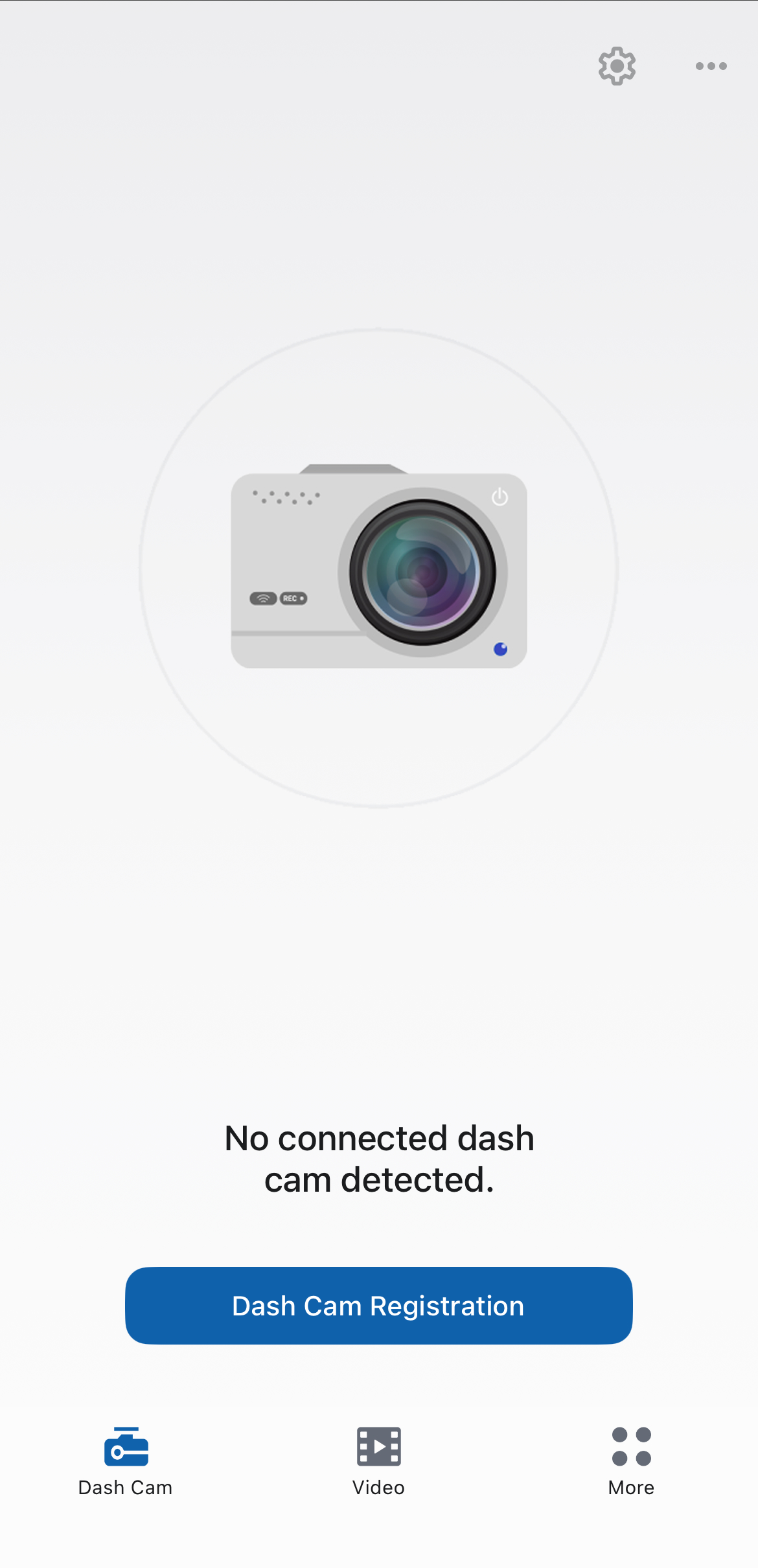
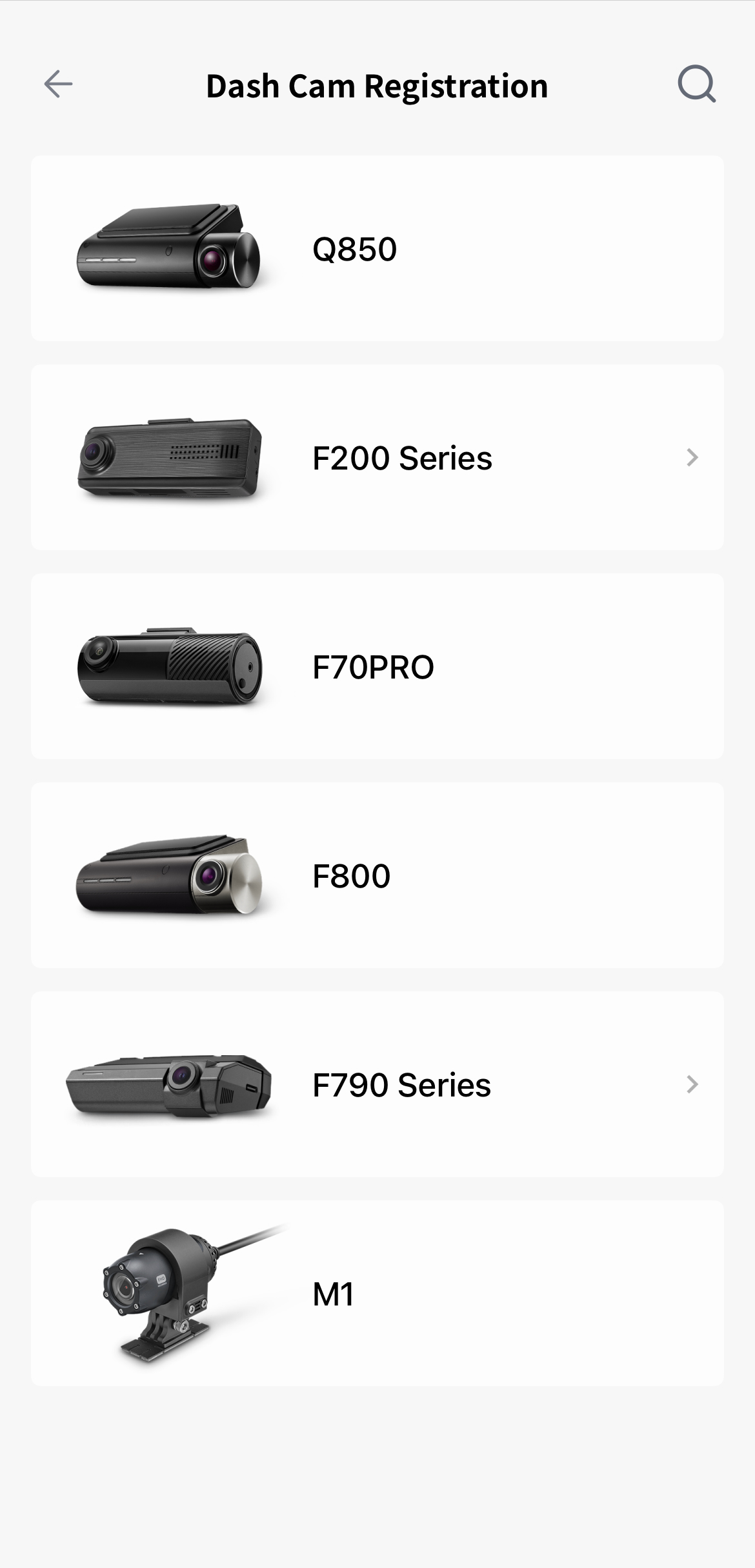
Select a dash cam to register F790 Series
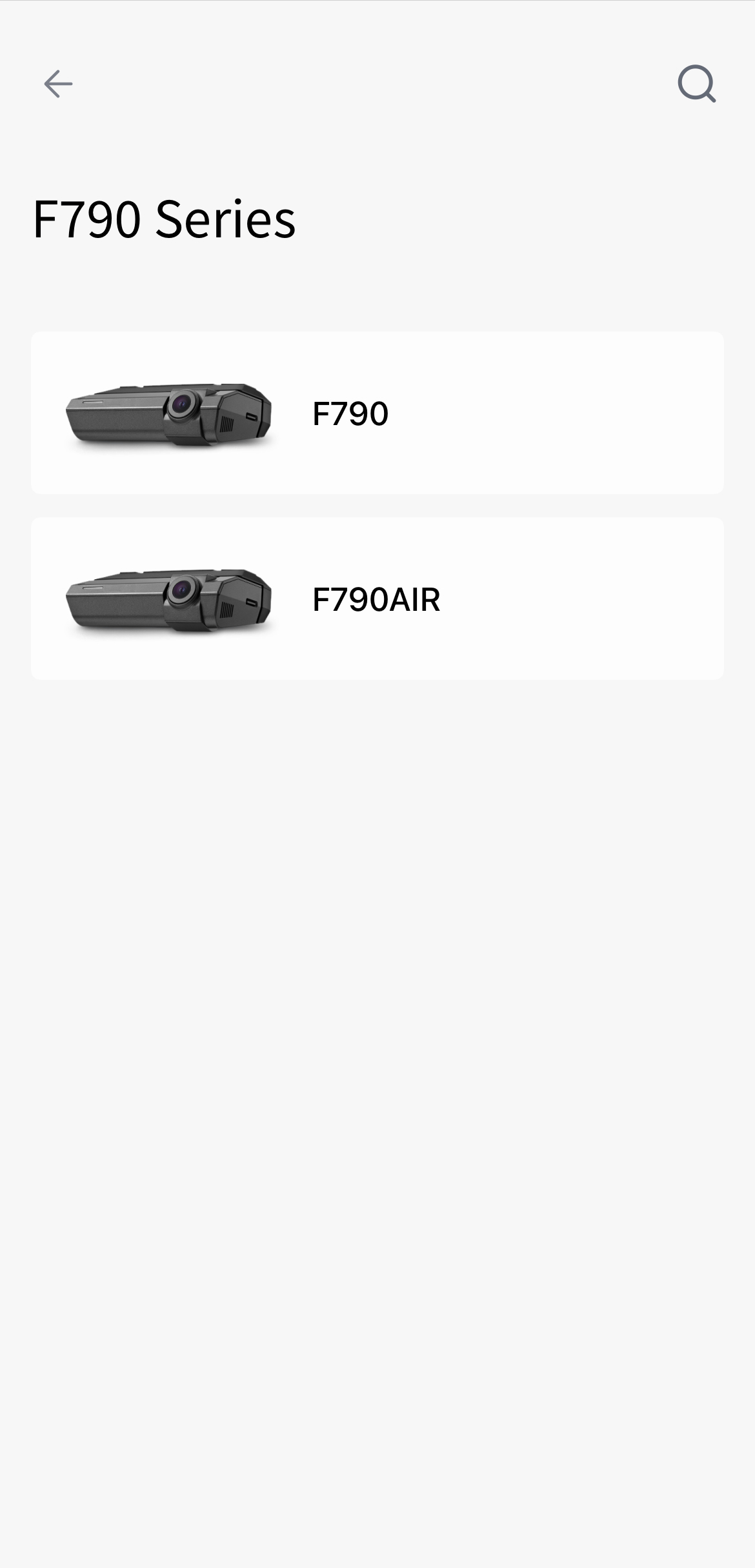
Select F790Air
Be sure your phone's Bluetooth is turned enabled. Once it's enabled, return to the app and press 'Next'
Confirm that the dash cam is powered on for the entire connection process. Hit 'Next' on the app to proceed
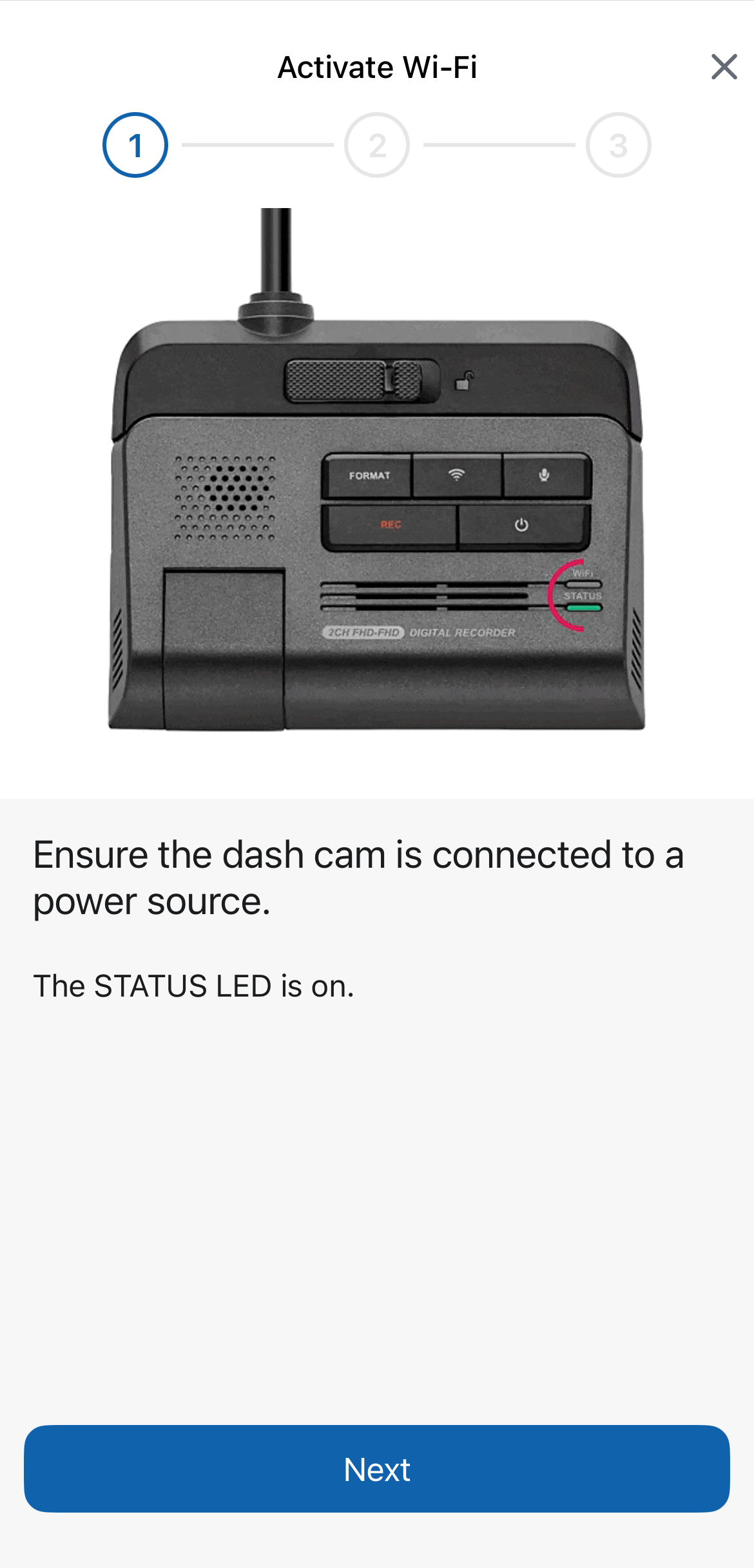
Make sure the green led is on
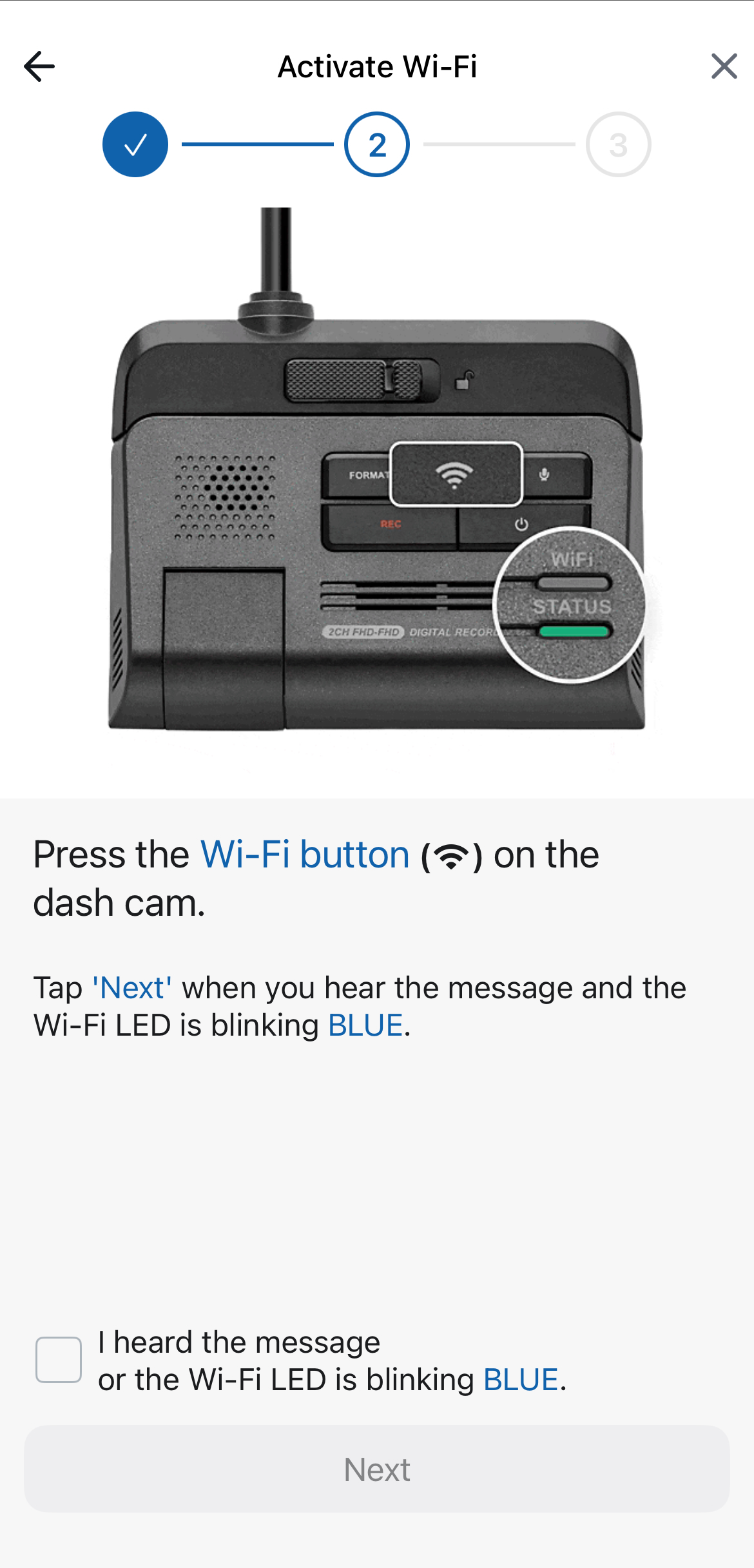
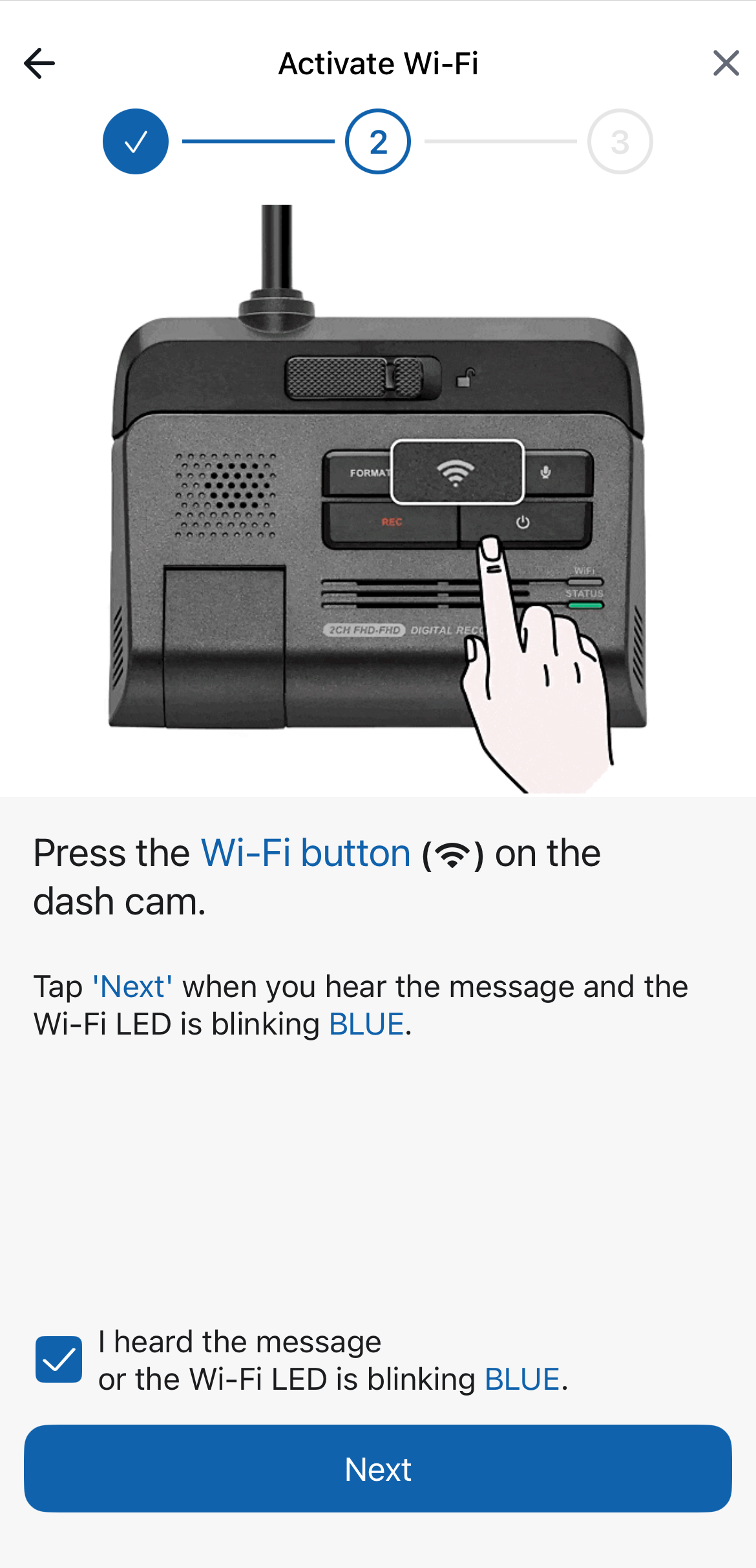
Press the WI-FI button on the F790Air, then select "I heard the message" and tap "NEXT" after hearing the message while the WI-FI led is blinking BLUE
Connect to the WI-FI network that starts with "Thinkware"
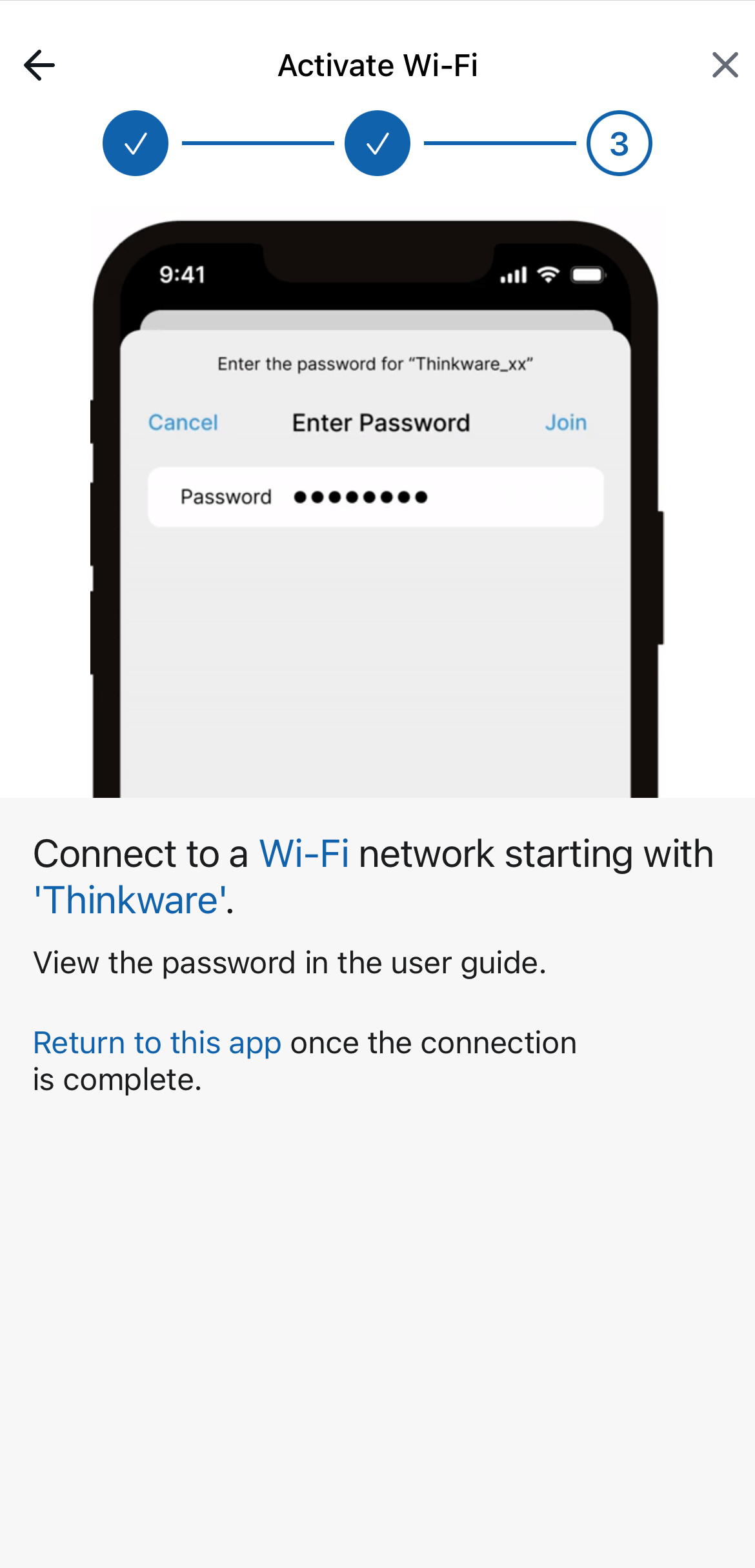
Enter the WI-FI password 123456789
Once connected, you can return to the main page of the app to make any needed adjustments in settings or view recorded events